

Quick Answer: Can You Recover Deleted Files from an HP Laptop
Yes, deleted files can often be recovered from an HP laptop.
When deleting a file, Windows removes its reference from the file system’s index and marks the space as available, instead of erasing the actual data. This leaves the original data intact and recoverable until new data overwrites it.
Recovery Likelihood by Scenario
The chances of HP laptop data recovery depend on the drive type (SSD or HDD), deletion method, and whether new data has overwritten the deleted files.
| Deletion scenario | HDD recovery likelihood | SSD recovery likelihood |
| Files sent to the Recycle Bin | Very high | Very high |
| Emptied Recycle Bin/Shift + Delete deletion | High | Low |
| Accidental quick format | Moderate to high | Low |
| Factory reset (without secure wipe) | Moderate | Low |
| Data overwritten by new files | Usually impossible | Usually impossible |
| Physically damaged drive (still detectable) | Difficult | Difficult |
Common Causes of Data Loss on HP Laptops
Data loss typically stems from these causes, including:
- Accidental deletion
- Software & OS glitches
- Virus or malware attacks
- Drive failure
- Physical damage, like a drop
What to Do Immediately After Losing Files on an HP Laptop
Before attempting to recover deleted files from an HP laptop, follow these steps immediately to improve the success rate of recovery.
Do:
- Stop using the affected drive
- Stop saving new files
- Disconnect external storage devices
- Check available backups
- Start recovery as soon as possible
Avoid:
- Installing software on the affected drive
- Continuing to use the laptop as usual
- Saving files back to the original location
How to Recover Deleted Files from HP Laptop
There are several effective methods to recover lost files from an HP laptop. Use the table below to quickly find the best method for your situation.
| Recovery Method | Best for | Difficulty | Success rate |
| Check the Recycle Bin | Recently deleted files that haven’t been removed permanently | Easy | Very high |
| Use MiniTool Power Data Recovery | Permanently deleted files, formatted drives, system crashes, emptied the Recycle Bin, RAW drives, etc. | Easy | Very high |
| Use File History | Recovering files from a backup | Easy | High |
| Restore previous versions | Restoring older versions of folders or files | Medium | Medium–High |
| Check cloud backups | Files synced to Google Drive, OneDrive, or Dropbox | Easy | High |
Method 1: Check the Recycle Bin
Best for: Files/folders accidentally deleted within the last few days and not permanently removed.
Check the Recycle Bin first after an accidental deletion. It acts as a temporary storage for deleted files, giving you a chance to restore them before the Bin is emptied.
By default, items in the Recycle Bin can stay there indefinitely until you empty the Bin, or until the Bin runs out of the allocated disk space.
Follow these steps to check the Recycle Bin:
Step 1: Double-click on the Recycle Bin icon on the desktop to open it.
Step 2: Check if the necessary file or folder is there. If yes, right-click it and choose Restore.
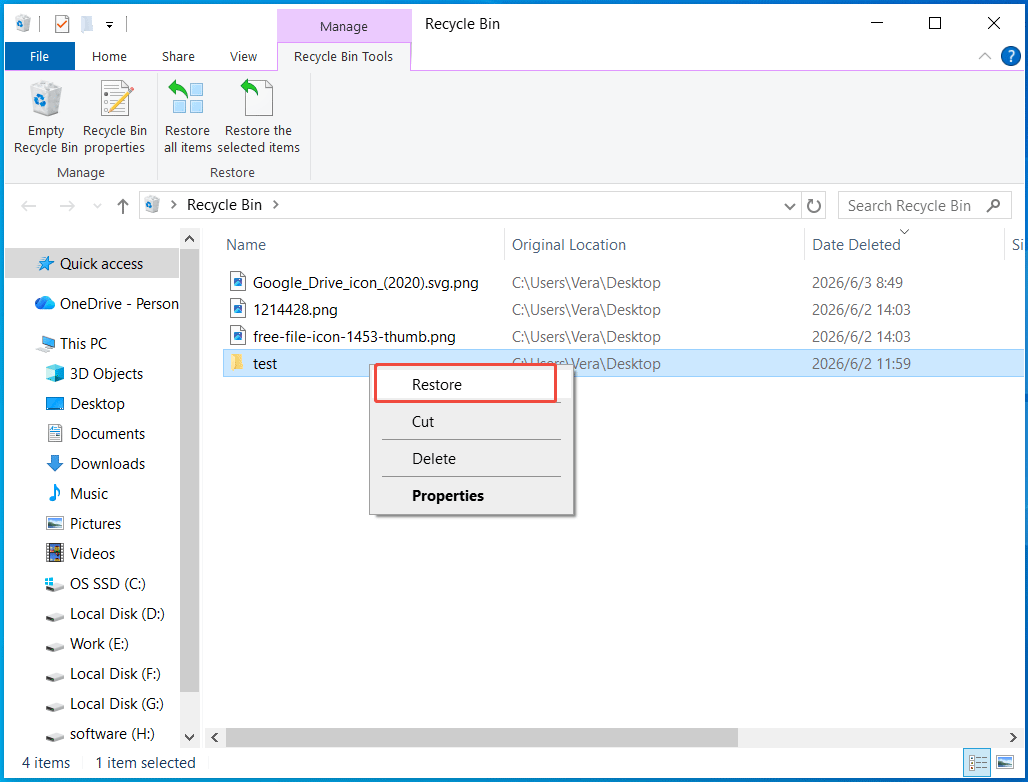
Then, the item will go back to its original location.
Method 2: Use MiniTool Power Data Recovery
Best for: Recovering files that were deleted after emptying the Recycle Bin or using the Shift + Delete shortcut, and other complex data loss situations.
If lost files are not in the Recycle Bin, Windows doesn’t provide a straightforward way to recover them. To perform HP laptop data recovery, professional software may help.
MiniTool Power Data Recovery is designed for Windows to support various data loss scenarios from HDDs, SSDs, USB flash drives, SD cards, and other storage devices. It can help deeply scan the drive to recover lost files from an HP laptop.
Immediately implement data recovery after file deletion. The sooner you take action, the higher the success rate of recovery.
Test environment:
- Windows 10 22H2
- NTFS HDDs
Step 1: Install and launch MiniTool Power Data Recovery on your HP laptop.
MiniTool Power Data Recovery FreeClick to Download100%Clean & Safe
Step 2: Choose the drive where the deleted files were stored and click Scan.
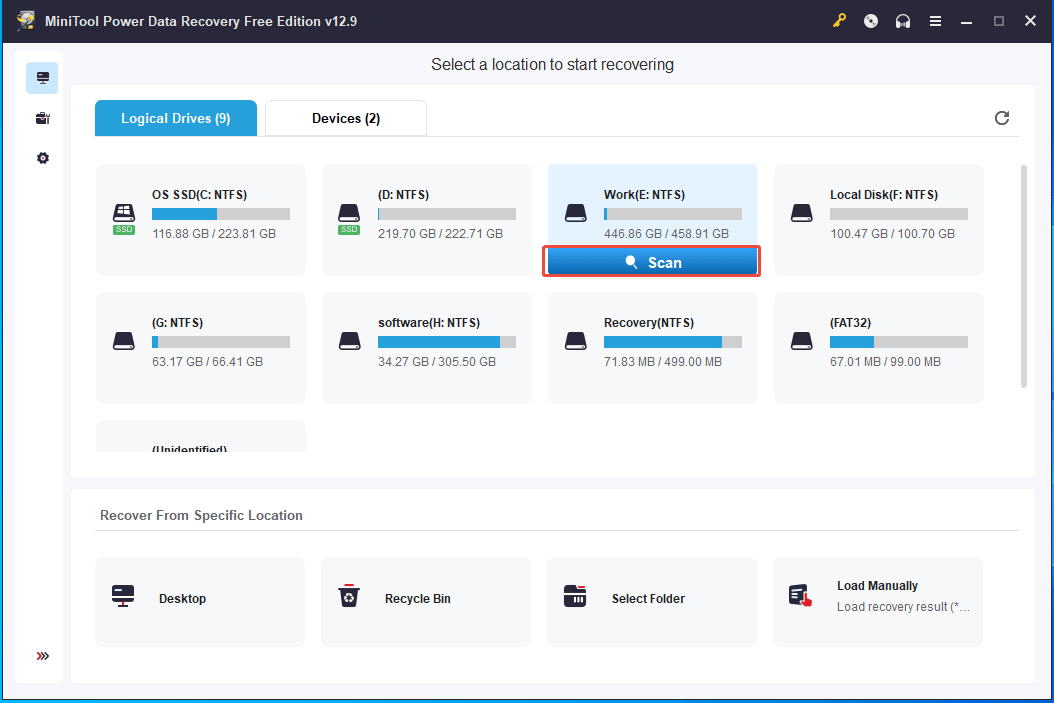
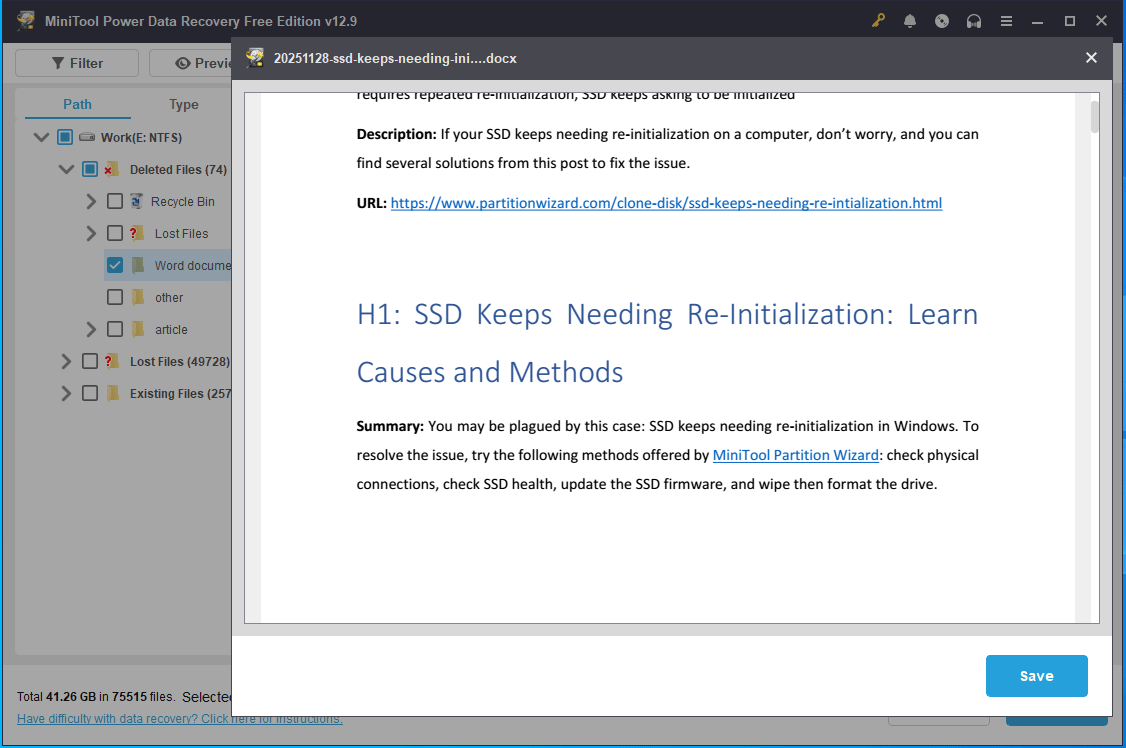
Step 3: Wait for some time to finish the scanning process. Then, browse the result and find the deleted file using the Path, Type, Filter, or Search options.
During testing, I deleted a Word file from the E drive. After scanning, the software successfully detects it, and I confirm it is the one I need by clicking Preview.
Step 4: Select the target file and click Save to restore it to a different drive.
Method 3: Use File History
Best for: Files and folders that were previously backed up using File History.
File History is a built-in feature in Windows 11 and Windows 10 that helps automatically back up files to an external drive or network location.
If you enable this feature, you can perform HP laptop data recovery from backups after data loss.
Step 1: Type Control Panel in the Search and choose the tool to open it.
Step 2: Set View by to Large icons.
Step 3: Locate File History and open it.
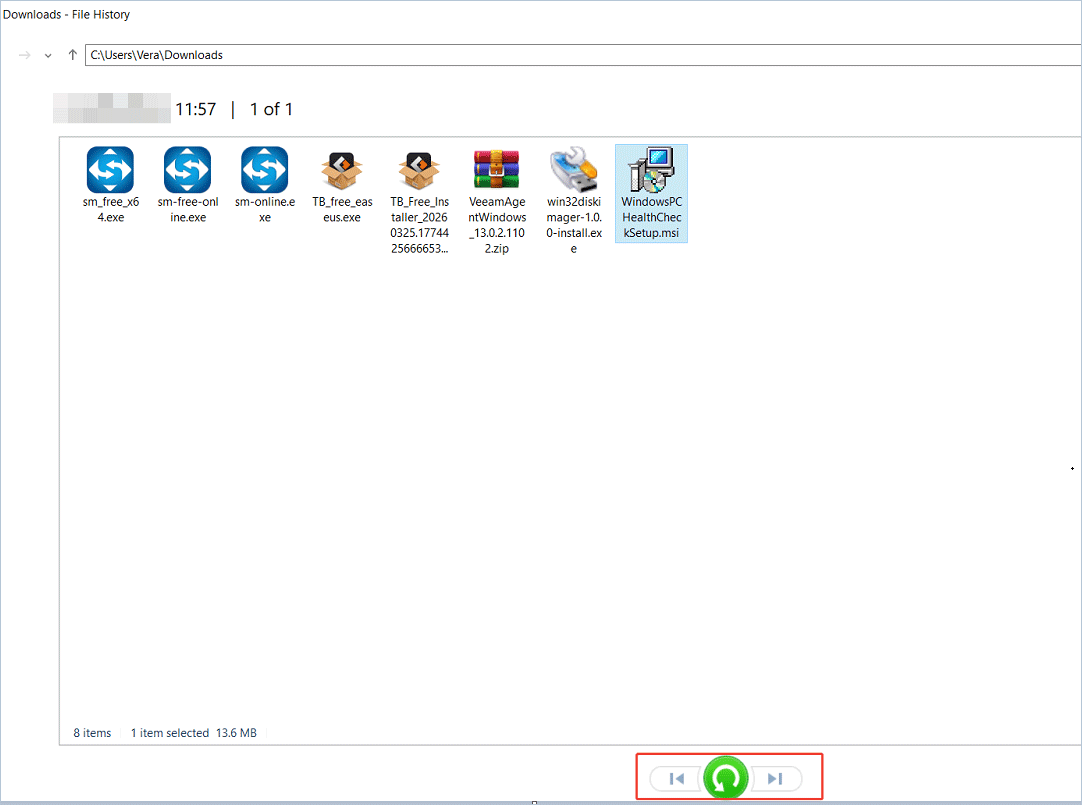
Step 4: Click Restore personal files from the left panel.
Step 5: Browse available backups, choose the file you need, and click the Restore button to restore it to the original location.

Method 4: Restore Previous Versions
Best for: Recovering an earlier version of a file or folder.
Windows can automatically create restore points and shadow copies, allowing you to restore previous versions of files and folders.
If files are deleted from an HP laptop, restore their earlier versions.
Step 1: Locate the folder where deleted files were stored.
Step 2: Right-click on this folder and choose Properties.
Step 3: Navigate to the Previous Versions tab.
Step 4: Choose the latest version and click Restore.
Method 5: Check Cloud Backups
Best for: Files synced to the cloud, such as OneDrive, Google Drive, or Dropbox.
Cloud backup is one of the effective methods to protect important data against hard drive failure, virus attacks, system crashes, and accidental deletion. Once files are deleted from your computer, recovery becomes very easy.
Check cloud backups to recover deleted files from an HP laptop:
Step 1: Sign in to OneDrive, Google Drive, or Dropbox.
Step 2: Check the synced files, select the required item, and download it to your computer.
After trying the methods above, you should be able to recover most deleted files from your HP laptop.
Can Deleted Files Be Recovered from an HP SSD
Yes. However, compared with HDD recovery, HP laptop SSD recovery is often more challenging. This is because most SSDs use the TRIM command to improve performance and manage storage efficiently.
When files are deleted, TRIM informs the SSD that the associated data blocks are no longer needed and can be erased. This can significantly reduce the chances of successful recovery.
For the best recovery results, it’s essential to stop using the drive immediately and begin the recovery process as soon as possible if you accidentally delete files.
In this case, using a professional tool like MiniTool Power Data Recovery may increase the chance of data recovery before files are permanently deleted.
How to Prevent Data Loss on an HP Laptop
Data loss can occur because of human error, malicious attacks, hardware failure, and physical damage, making it important to adopt proactive data protection measures.
To safeguard your data and reduce the need for data recovery in the future, follow these practices:
- Keep Windows and software up to date.
- Run a reliable antivirus tool to scan and remove viruses and malware.
- Check the hard drive health periodically.
- Sync important documents and photos to the cloud, such as OneDrive, Google Drive, or Dropbox.
- Automatically back up files to an external drive with professional software like MiniTool ShadowMaker.
Recover Deleted Files from an HP Laptop FAQ
When a file is permanently deleted, such as by emptying the Recycle Bin or pressing Shift + Delete, the system simply marks the space as available for reuse. Files can be restored as long as no new data is written.
1. You use Shift + Delete to delete files instead of moving them to the trash.
2. You empty the Recycle Bin.
3. Files exceed the Recycle Bin's maximum size limit.
4. Files deleted from external storage devices skip the Recycle Bin.
Conclusion
This comprehensive guide explains how to recover deleted files from an HP laptop through 5 simple methods. Follow some tips before recovery and try the recovery options to find the necessary files, including using MiniTool Power Data Recovery.
If you encounter issues with our software, contact us at [email protected] to ask for help.
User Comments :